CaaS: A Step-by-Step Guide
This comprehensive guide provides step-by-step instructions for deploying a pre-built container image using Container-As-A-Service (CaaS).
Getting Started
Step 1: Register Your Application
- Go to Enterprise Service Portal within ServiceNow.
- Click Service Catalog.
- Search for "Application Registration".
- Fill in the details and click Submit.
- You will receive an email confirmation with a three-letter app code.
Step 2: Onboard Your Application
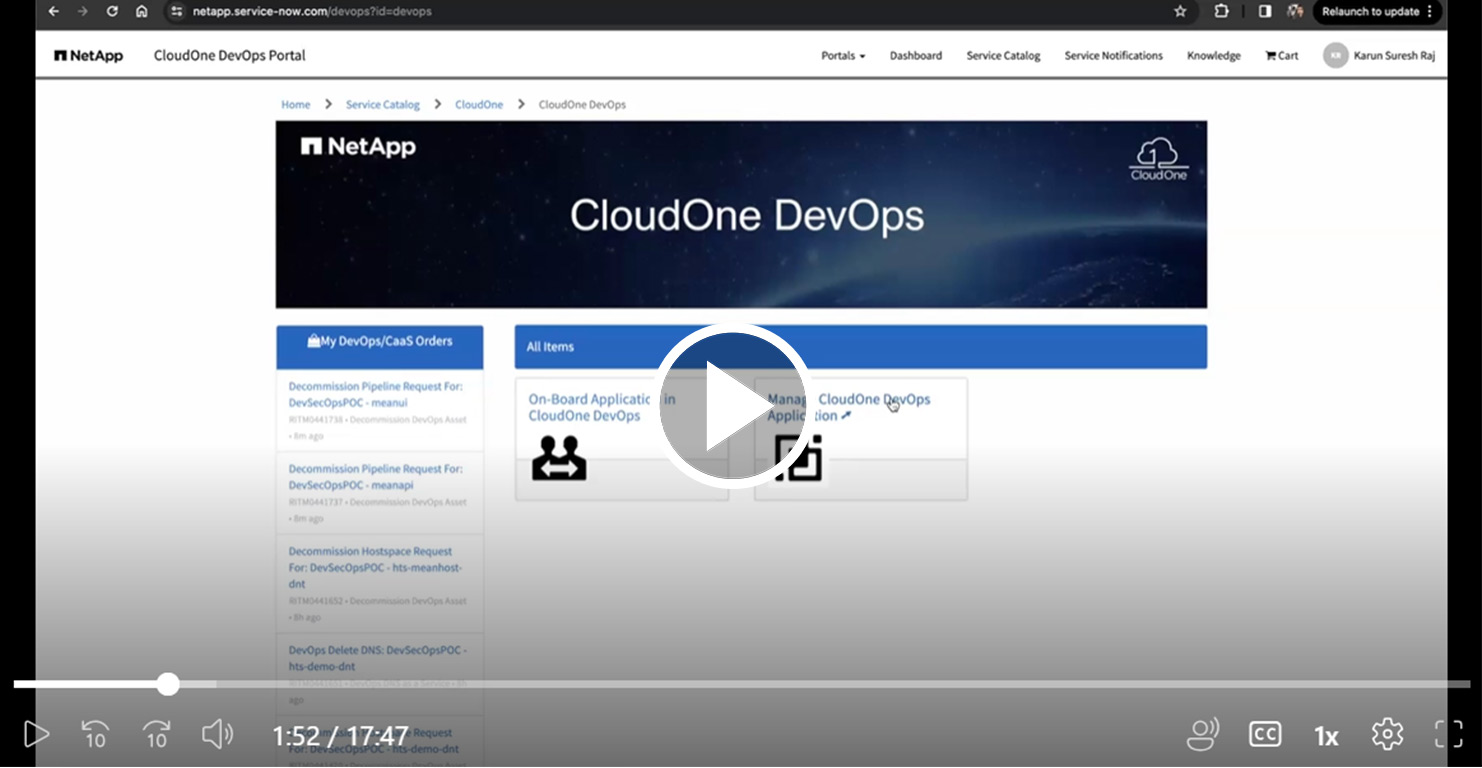
- Navigate to NetApp ServiceNow DevOps.
- Click On-Board Application in CloudOne DevOps to begin the onboarding process.
This kicks off a series of automation steps, typically taking 40-45 minutes, after which you will receive an email with links to:
- Azure DevOps Project
- SelfAssist Portal
- Rancher environment
- NEAT, JFrog Artifactory, and StorageGrid
Application Configuration
Step 3: Ordering Your App Stack
- Go to Manage CloudOne DevOps Application.
- Search for your three-letter APP CODE.
- Order the following Services -
- Pipelines: CaaS
- Hostspaces: Order one Hostspace (choose an appropriate T-Shirt Size)
Step 4: Setting Up Your Development Environment
- Go to Azure DevOps Org and choose your project
- Navigate to
Repos/Files/.- Select caas-caasdemo from the drop-down.
- Create a feature branch and clone the repo locally.
Step 5: Preparing for Deployment
Setting Up DB (This step is optional if you're using a database provisioned via SCALE)
- Create your connection string using the database credentials available in the Rancher UI
- Securely manage connection string, username and password as
variableswithin Azure DevOpsVariable Groups(Check Self Assist Documentation for more details) - Update
azure-pipelines.ymlandvalues.hostspace.yamlfiles to reference the envioronment variables
azure-pipelines.yml
   variableGroups:
      - db_vars
   secretVarKeys:
      - dburl
      - uname
      - pass
values.hostspace.yaml
   env_vars:
   - name: "primary"
   configs:
         MYSQL_URL: "$dburl"
         MYSQL_USER: "$uname"
         MYSQL_PASS: "$pass"
- Update application source code to reference above envirornment variables
application-mysql.properties
   spring.datasource.url=${MYSQL_URL}
   spring.datasource.username=${MYSQL_USER}
   spring.datasource.password=${MYSQL_PASS}
Adjust Liveness and readiness probes
Update values.yaml Liveness and readiness probes to ensure proper delay is allocated for the application to come up
livenessProbe:
  failureThreshold: 3
  httpGet:
    path: /
    port: 8080
    scheme: HTTP
  initialDelaySeconds: 90
  periodSeconds: 10
  successThreshold: 1
  timeoutSeconds: 1

readinessProbe:
  failureThreshold: 3
  httpGet:
    path: /
    port: 8080
    scheme: HTTP
  initialDelaySeconds: 90
  periodSeconds: 10
  successThreshold: 1
  timeoutSeconds: 1
Upload container image to JFrog Artifactory
- Build your image with latest changes.
- Tag and Push the docker image to
docker-hts.repo-hio.cloudone.netapp.com
   docker build --platform linux/amd64 -t petclinic-app-v0 .
   docker images | grep petclinic-app-v0
   docker tag <image_ID> docker-hts.repo-hio.cloudone.netapp.com/upload/caasdemo:0.0.1
   docker push docker-hts.repo-hio.cloudone.netapp.com/upload/caasdemo:0.0.1
Finalizing Deployment
Step 6: Deploying to Hostspace
- Modify
azure-pipelines.ymlto comment out the workspace section and enable the hostspace section.
    acceptanceSpace: hts-caashost-dnt
    spaces:
      # workspace:
      #   helm:
      #     overrideFiles: hts-caasdemo/values.workspace.yaml
      hts-caashost-dnt:
        variableGroups:
          - mariadb_vars
        secretVarKeys:
          - dburl
          - uname
          - pass
        helm:
          overrideFiles: |
            hts-caasdemo/values.hostspace.yaml
- Commit the changes and push to remote.
- Run the pipeline and verify that the application is accessible via the kong ingress URL.
Step 7: Custom Domain Setup
- Register a custom domain
- Navigate to NetApp ServiceNow DevOps.
- Click Manage CloudOne DevOps Application.
- Search for your three-letter APP CODE.
- Click DNS as a Service and enter your preferred domain name to get the DNS Record created
- Update
values.hostspace.yamlwith your custom domain.
   ingressEndpoints:
   - host: caasdemoapp.netapp.com
- Commit your changes and push to remote.
- Run the pipeline and verify that the application is accessible via the custom URL.
Need Assistance?
If you encounter any issues or require support, don't hesitate to reach out to one of the SCALE team members. We're here to help!