VM Resize
You may resize your VM (CPU and/or memory) using the IaaS Portal. The Resize operation adjusts the compute resources allocated to your VM depending on the provider:
- AWS / Azure - Select a new instance type/VM size from a list of available options. Each option shows the vCPU count, memory, and storage.
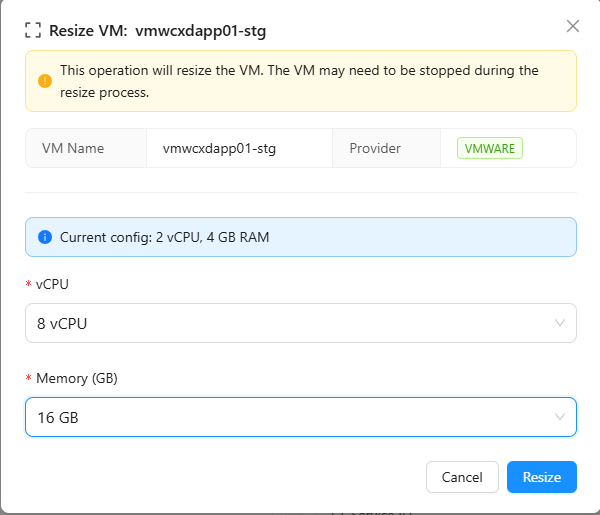
- VMware (on-prem) / OCI - Select a new vCPU count and memory (GB) independently from available options.
The VM may need to be stopped during the resize process.
To resize a VM, log into the IaaS Portal and navigate to IaaS --> VM Management at the top. Find your VM in the list and click on it to open the VM detail page. Click the purple Resize button in the top-right area of the page.
A dialog will appear showing your VM's current configuration and a form to select the new size. Your current instance type/CPU/memory will be pre-selected for reference and excluded from the available options. Select your desired size and click Resize to submit the operation.
The Portal will submit the resize job and display a Job ID. You can track the progress of the resize in the job status dialog that appears automatically.